Create & track tasks in Slack
Manage tasks in Slack without drowning in messages, chasing updates, or convincing the team to check other tools.
Add to Slack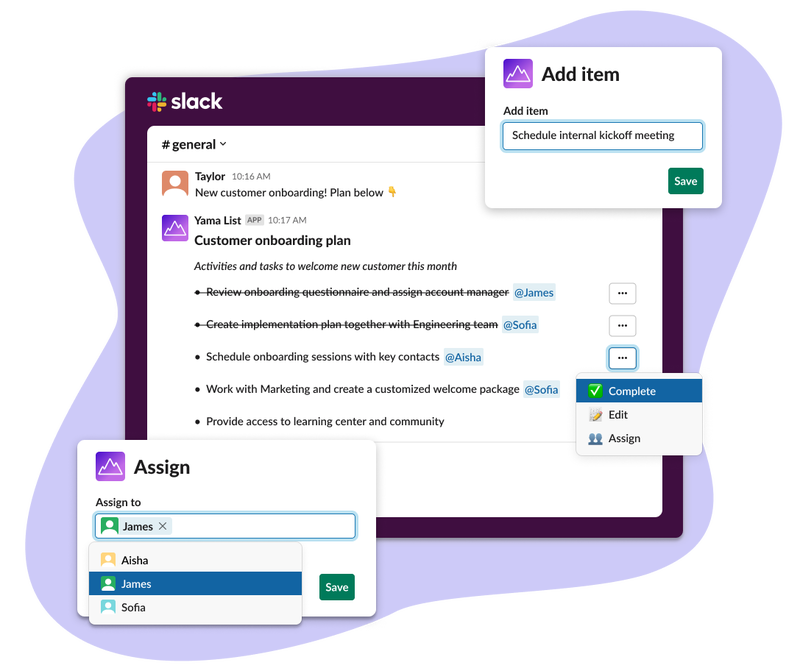
Get things done (the easy way)
Tired of the messiness of combing through the Slack message history, convincing the team to check another tool, or spending time chasing updates?
Quickly clarify tasks and owners
Get clear on what needs to be done and who is doing what without drowning in back-and-forth messages on Slack. Create collaborative lists with Yama and make sure everyone is aligned on tasks and owners.
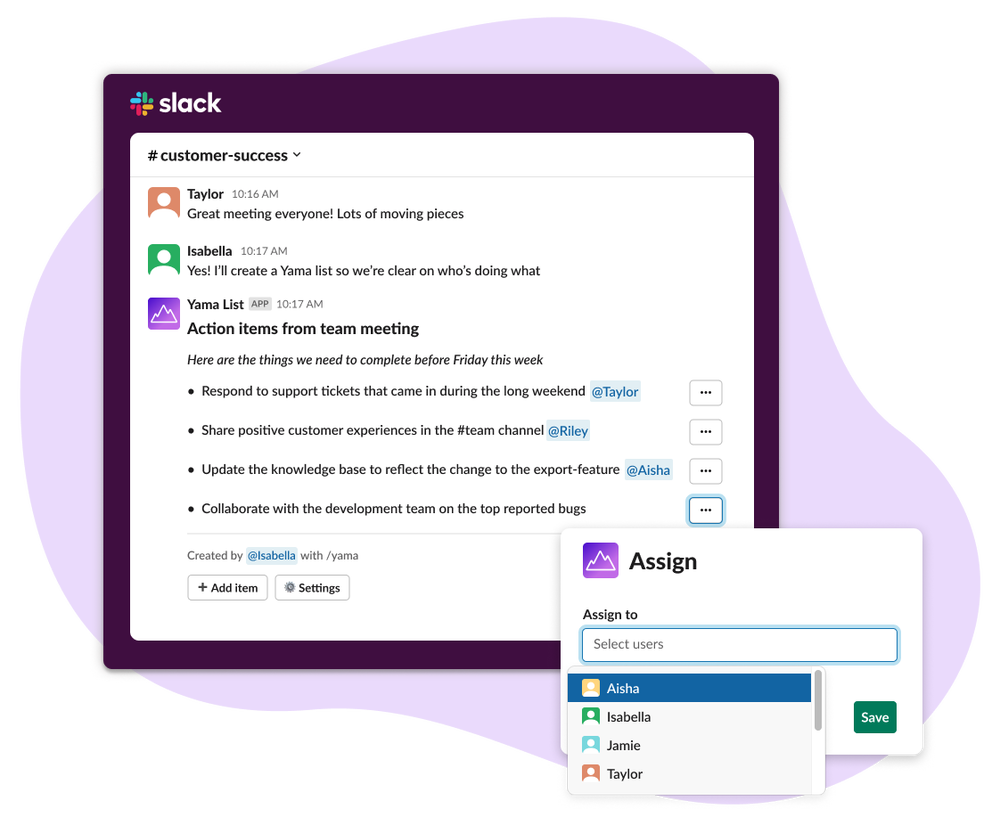
Get the details, without the clutter
Quickly get a clear picture of the current status of work without the hassles of constant check-ins, chasing updates, or digging through dozens of conversations.
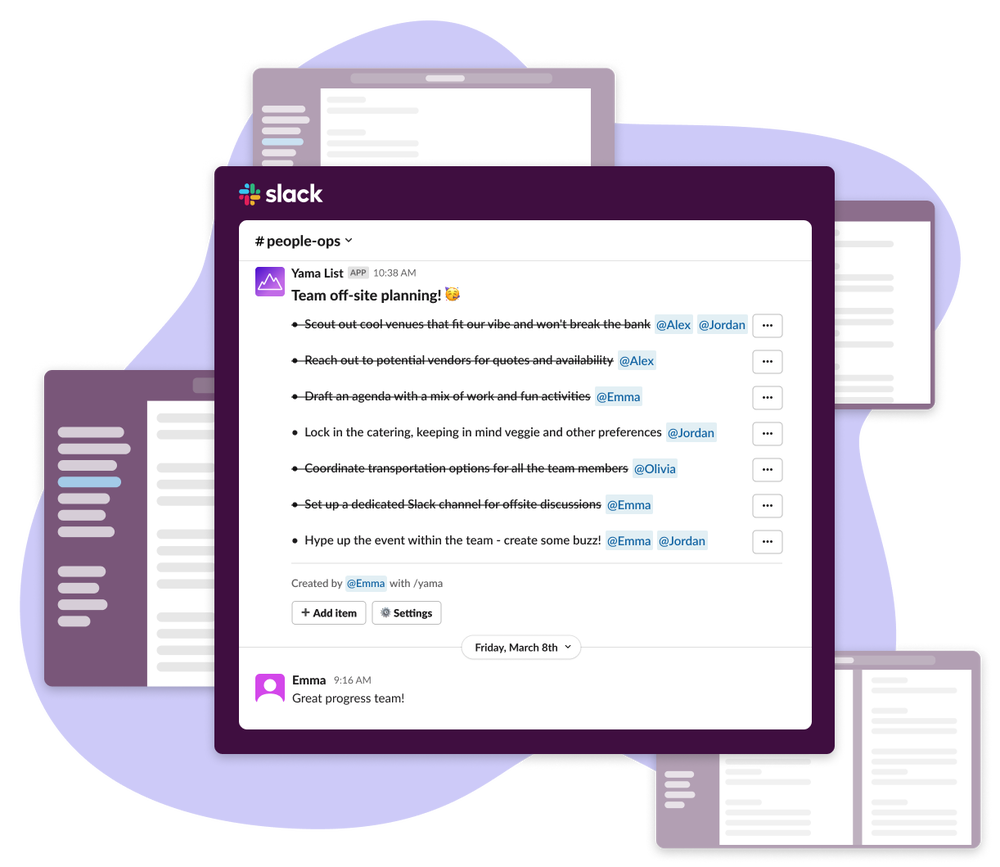
Easy for anyone to contribute
No need to learn any new tools or interfaces. If you know how to use Slack, you know how to use Yama. Anyone on the team can create, assign, and track tasks — all without leaving Slack.
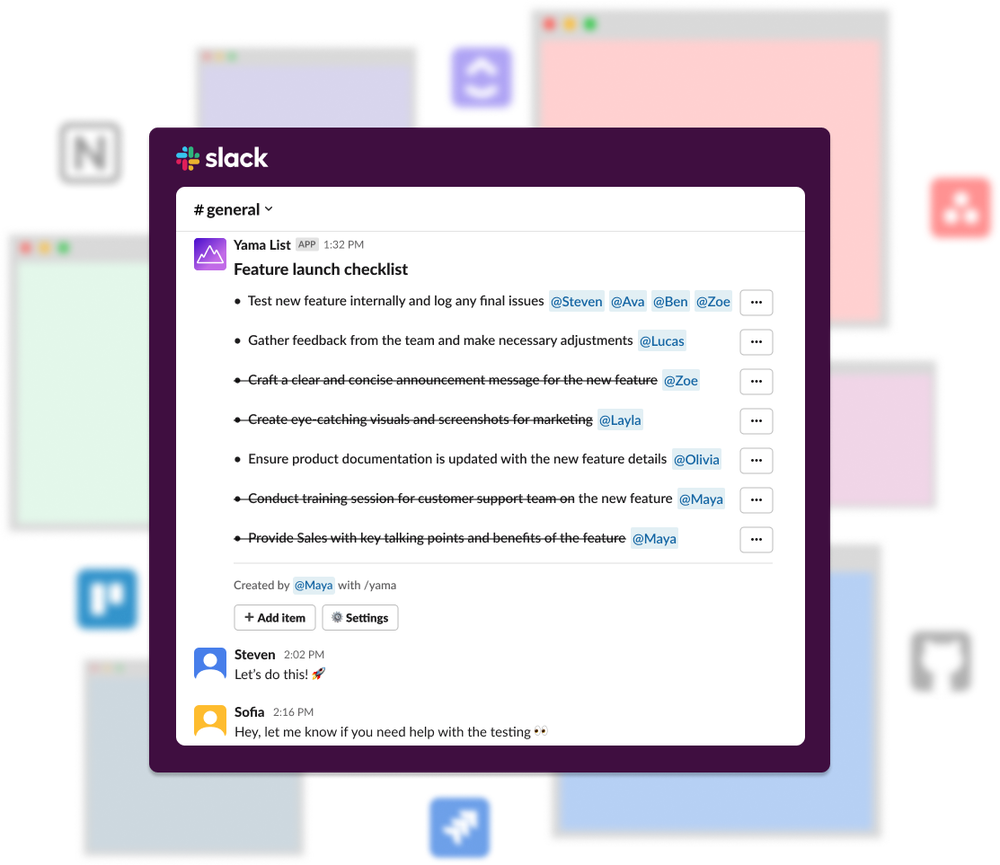
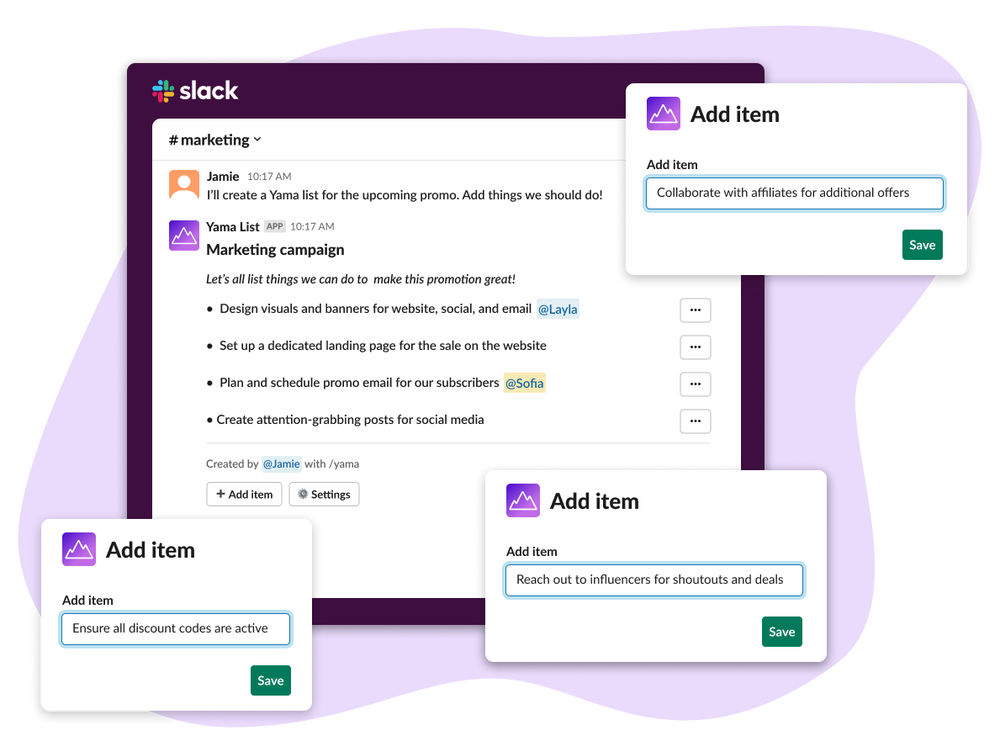
Effortless visibility for the team
Let the team stay informed without bouncing between external tools or clicking yet another link. Yama makes it painless for everyone to stay in the loop on progress.
Pricing
Pro
per month (billed annually)
- Unlimited users
- Unlimited lists per month
- 25 items per list
- Features
- Assign items
- Set due dates
- Set reminders
- Add list sections
- Recreate lists
Free
per month
- Unlimited users
- 10 lists per month
- 10 items per list
- Features
- Assign items
- Set due dates
- Set reminders
- Add list sections
- Recreate lists
Frequently Asked Questions
To add Yama to your Slack workspace, click the Add to Slack button.
After you install Yama, the app is available in your Slack workspace for anyone to use. You will receive a message from Yama inside Slack that shows you how you can create your first list.
To create a list with Yama, enter the shortcut command /yama in the channel where you want to create the list. This will launch Yama and let you to create your list.
Yes! All they need to do is enter the shortcut command /yama to launch Yama.
Once 10 lists have been created in a month, no more lists can be created until the start of the following month. The monthly list limit renews every calendar month
After you have added Yama to your Slack workspace, click the Get Yama Pro button located in the app’s Home tab in Slack. You can then select your plan and complete the purchase.